Before you start
Export your sequence from Upshot as AAF and copy it to the machine running Media Composer (or somewhere the machine can reach). Note the frame rate the sequence was boarded at — you will need it in the next step.
Step 1 — Create a project at the original frame rate
Create a new Media Composer project whose frame rate matches the frame rate of the original Upshot sequence. This matters: if the project's FPS differs from the sequence's, timing and cut points will not land where you boarded them.
Step 2 — Import the AAF into a bin
Create a new bin for the boards, then drag the AAF file straight into the bin.
Alternatively, right-click inside the bin and choose Input → Import Media, then select the AAF file.
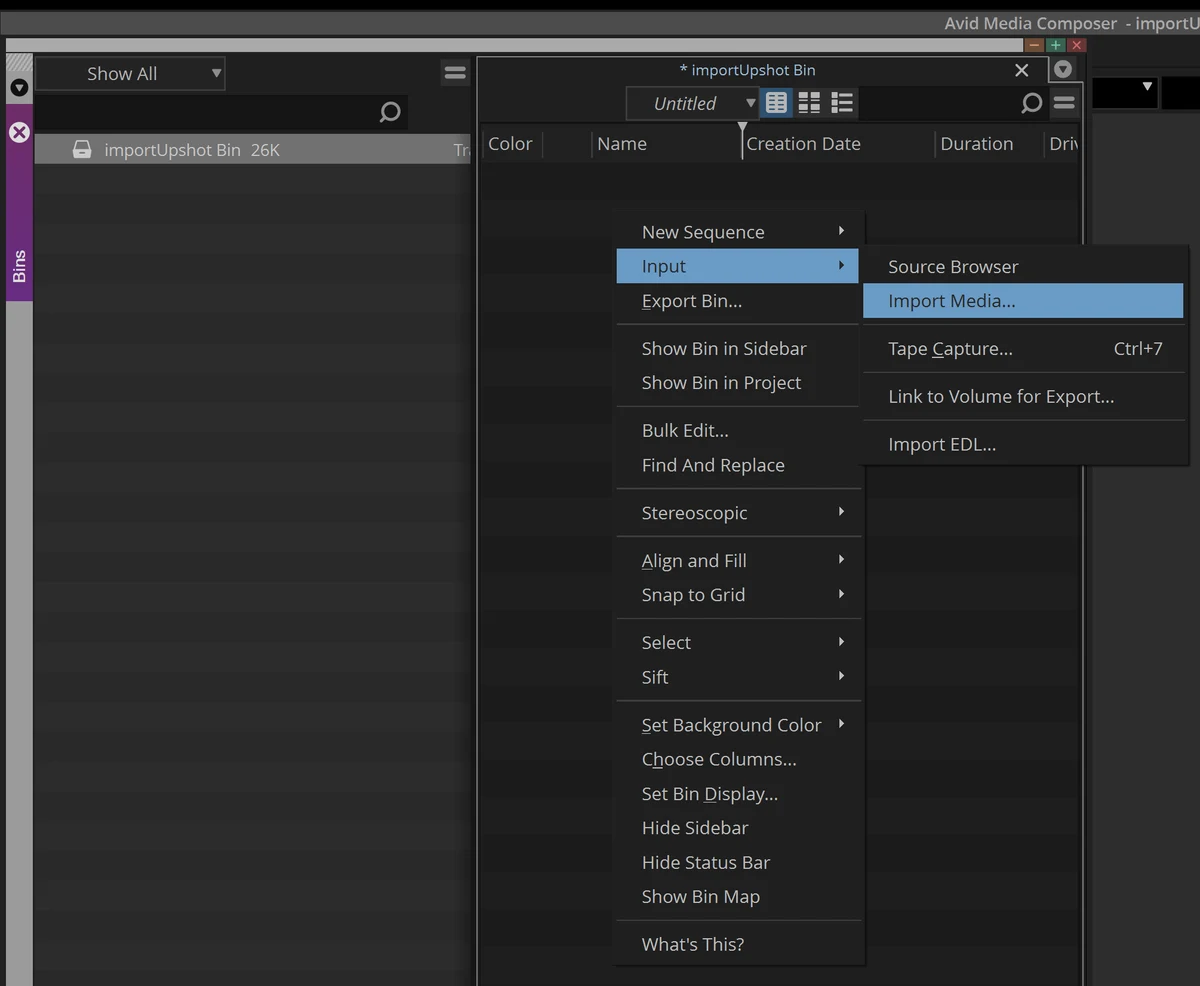
The sequence and its clips appear in the bin. At this point the clips are still offline — that is expected, and the next step fixes it.
Step 3 — Batch Re-Import the panels
Select the sequence in the bin, then right-click it and choose Batch Re-Import… (the same command is under the Clip menu). When Media Composer asks which clips to re-import, select Offline only.
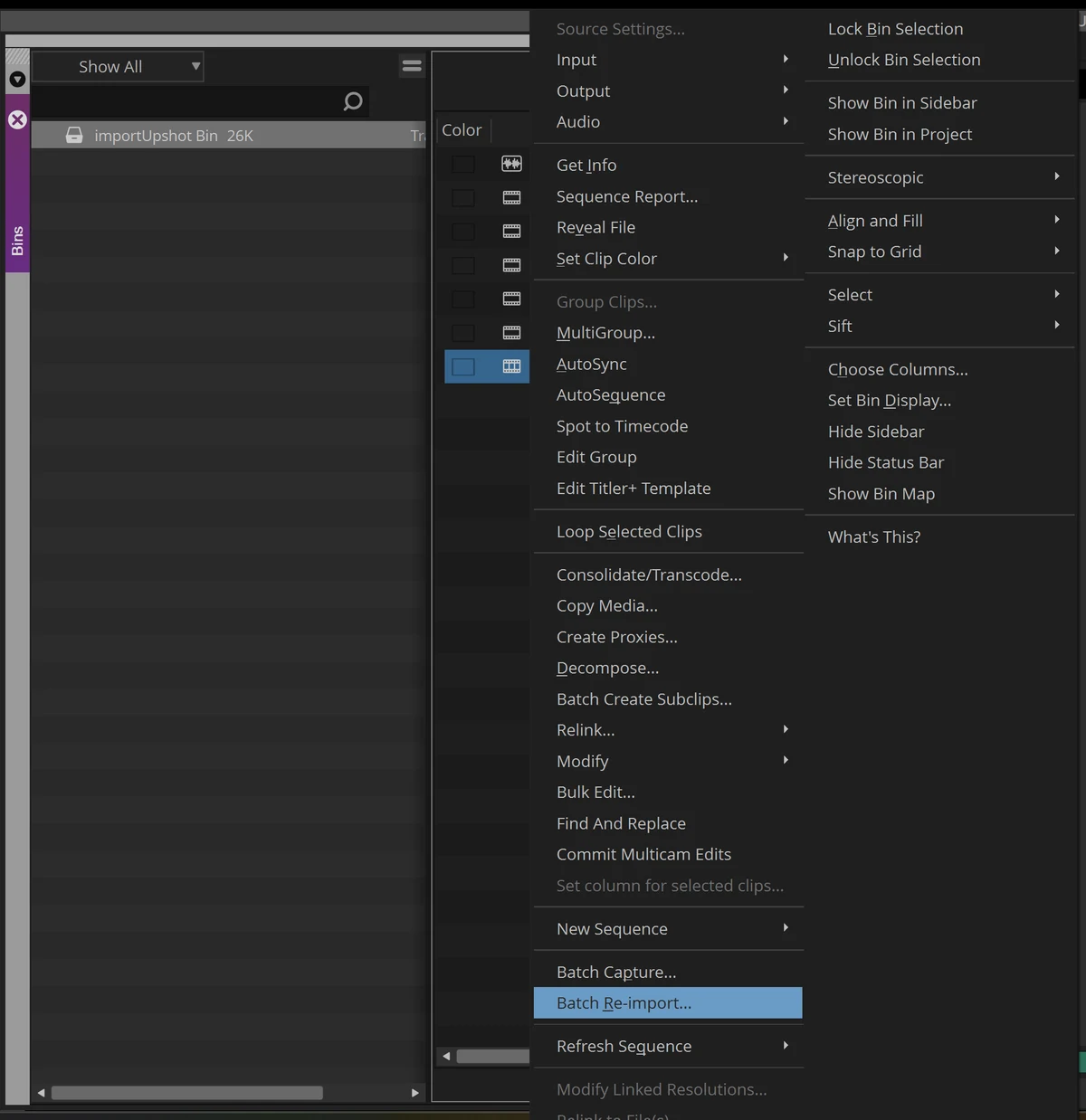
Media Composer re-imports the offline panel media, and the sequence comes online with your boards in place, cut at the timing you set in Upshot.
That's it
Load the sequence in the timeline and scrub through it — panels, durations, and shot markers should match what you boarded. From here editorial can recut the boards like any other footage.